

Set up Turnstile
Create a Turnstile widget and set its two keys so that the contact form starts accepting submissions.
Follow this page to create a Turnstile widget and set its site key and secret key. Once both are set, the contact form starts accepting submissions.
Turnstile is a free Cloudflare feature that helps keep automated programs from sending the contact form. The goodnight-web contact form requires it.
Create the widget
- In the Cloudflare dashboard, open Turnstile and select Add widget.
- Widget name: anything that helps you recognize it, for example your company name.
- Hostnames: your site's domain, for example
example.com. If you also use theworkers.devaddress while testing, add it too. Remove it when you turn that address off. - Widget mode: Managed is a good default. Most visitors see only a short check; some are asked to click.
- Select Create.
Cloudflare then shows two values (Cloudflare: create a widget in the dashboard):
- Site key: public. The contact page uses it to show the widget.
- Secret key: private. The Worker uses it to verify each submission with siteverify, Turnstile's verification API.
Set the keys
| Key | Where it goes | Public? |
|---|---|---|
| Site key | The Worker variable TURNSTILE_SITE_KEY | Yes. The contact page reads it from /api/contact/form. |
| Secret key | The Worker secret TURNSTILE_SECRET | No. Never commit it or put it in a page. |
Site key
In the starter, the site key goes in wrangler.jsonc. Commit the change; the next deploy picks it up:
"vars": {
  "TURNSTILE_SITE_KEY": "0x4AAAAAAA...",
},
Set it only there. The contact page does not contain the key; it reads the key from the Worker.
Do not set it in the dashboard instead. A value set only there is replaced by the value in wrangler.jsonc on the next deploy, because wrangler deploy uploads the variables from the file.
Secret key
Open the Worker in the Cloudflare dashboard and add TURNSTILE_SECRET under variables and secrets, with the type Secret. From a terminal in your project folder, this command does the same:
npx wrangler secret put TURNSTILE_SECRETBefore the keys are set
goodnight-web fails closed: it turns a feature off until its required settings are in place. Without Turnstile, the contact API would accept anything a bot sends, so it rejects submissions instead.
| Where | Before you set up Turnstile |
|---|---|
POST /api/contact | Returns 503. |
| The contact page | Shows "The contact form is not available yet". |
| The admin screen | Shows the notice "The contact form is not accepting messages", with a link to this page. |
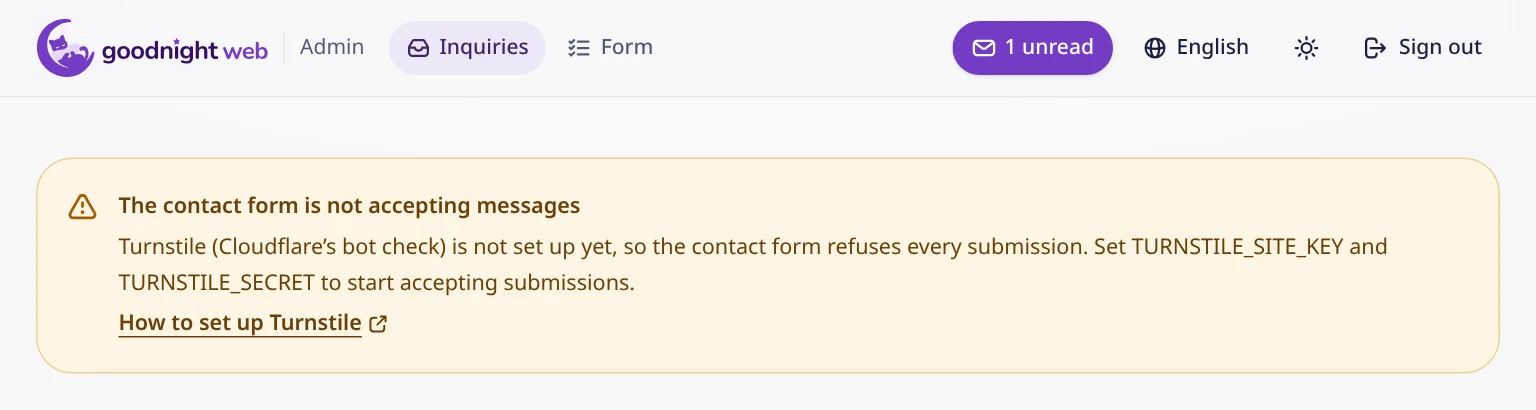
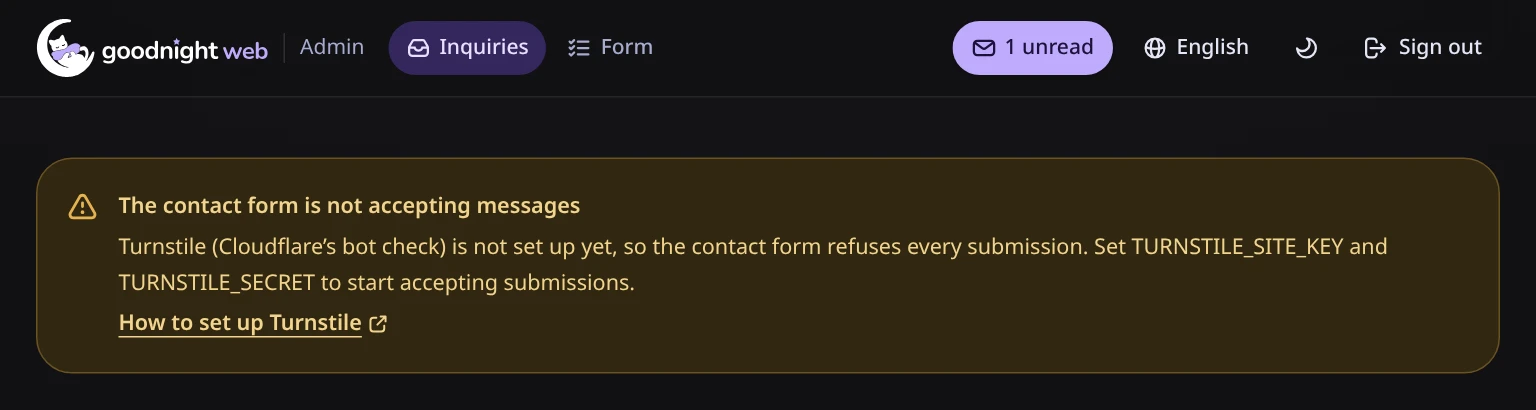
Visitors see the "not available yet" message instead of a form that seems to work but does not. Once both keys are set, the form starts working with no other change.
What the Worker checks
For each submission, the Worker sends the token from the form to siteverify. It accepts the submission only if all of these hold:
successis true.hostnameis your site's hostname: the hostname of the incoming request, or one of the hostnames in thecontact.turnstileHostnamesoption ofcreateGoodnightWorker().actionis the action that the contact form sets.
A token is valid for 300 seconds and can be verified only once (Cloudflare: server-side validation). If the check fails, the Worker returns 400 and saves nothing.
Contact form protection describes the other checks.
Local development
To check how the form looks under wrangler dev, use Cloudflare's test keys instead of real ones (Cloudflare: testing). With this pair, the widget always passes and siteverify accepts every token. The Worker's own checks still reject the submission, as the next section explains. The test keys are:
site key:   1x00000000000000000000AA
secret key: 1x0000000000000000000000000000000AA
Put the test keys in .dev.vars, your copy of the starter's .dev.vars.example, which Git ignores. Do not commit them to wrangler.jsonc.
Do not use test keys on the live site; they let every request through.
Test keys get rejected
With the test secret key, siteverify responds with hostname set to example.com and no action (checked on 2026-10-22):
{
  "success": true,
  "hostname": "example.com",
  "metadata": { "result_with_testing_key": true }
}
The Worker checks both fields, so it rejects a submission made with the test keys. The form says that the check failed.
This is intentional: the production check is not relaxed for local development.
The starter's end-to-end test
The starter's end-to-end test (npm run test:e2e) checks two things, in order:
- A submission made with the test keys is rejected, as described above.
- With
e2e/worker.ts, a test-only Worker, a submission goes through the form and is saved to D1. This Worker setshostnameandactionto the expected values, but only in siteverify responses markedresult_with_testing_key.
Never deploy e2e/worker.ts.