

Getting started
Set up your site with the Deploy to Cloudflare button and create the first admin.
Follow these steps to create a private copy of the starter, enter the secrets, add your own domain, set up Turnstile, and create the first admin.
What you need
- A Cloudflare account. The free plan is enough for a small website.
- A GitHub account.
- A domain name, if you want the site on your own domain. Decide this before you register a passkey (see Add your domain).
Press the Deploy to Cloudflare button
The button is in the README of the starter, the base of your site. It opens a Cloudflare setup form, which asks you to connect GitHub. The same form also asks for the secrets in the next step, so fill those in before you continue. Cloudflare then does the rest (Cloudflare: Deploy buttons):
- copies the starter into a new repository in your account
- creates the D1 database
- builds and deploys the Worker with Workers Builds
In the setup form, tick "Create private Git repository". Your repository must be private; Distribution and updates explains why.
If the repository was created as public, open Settings > General > Danger Zone > Change visibility in GitHub and choose private. Until you do, the starter's visibility check workflow fails on every push.
Fill in the setup form
The same setup form asks for the values below. Two of them are required: APP_SECRET and ADMIN_EMAILS. The secrets are private values stored with the Worker. You can also set or change them later in the Cloudflare dashboard, in the Worker's settings under variables and secrets.
| Name | Required | What it is for | How to make it |
|---|---|---|---|
APP_SECRET | Yes | Proves that you own the site when you create the first admin. The site also derives the key that signs admin sessions and the key that hashes IP addresses from it, so it stays in use after setup. | A random string of 32 characters or more. The command is below. |
ADMIN_EMAILS | Yes | The addresses that may become and stay admins, separated by commas. Only one admin can be created for now: setup closes when the first passkey is registered (Passkey sign-in). | Type your own address. |
TURNSTILE_SECRET | For the contact form | The Turnstile secret key. | Create a Turnstile widget in the Cloudflare dashboard and copy its secret key. |
TURNSTILE_SITE_KEY | For the contact form | The Turnstile site key. It is public, not a secret. | The same widget as the secret key. |
SLACK_WEBHOOK_URL | No | New-inquiry notices to Slack. They carry no names or form contents. | Create an incoming webhook in Slack. |
| Project name | Form field | The name of the Worker. It is part of the workers.dev address. | Pick a short lowercase name. |
| D1 database | Form field | Stores inquiries and admin accounts, including passkeys. | The form creates it; you only choose the name. The deploy script creates the tables. |
The table below shows when to enter each value, and what happens if you lose it or remove it.
| Name | When to enter it | If it is lost or removed |
|---|---|---|
APP_SECRET | In the form. You type it once more at /admin to create the first admin. | Do not delete or change it after setup. Missing or too short: setup, sign-in, the admin screen, and the contact form answer 503. Changed: every admin is signed out and signs in again with a passkey, and new IP hashes no longer match old ones. Cloudflare does not show a secret again after you save it, so keep a copy in a password manager. You need the value again to recover a lost passkey. |
ADMIN_EMAILS | In the form. | The Worker reads it on every request. An address you remove gets 403 at its next request. Setup stays closed while the list is empty. |
TURNSTILE_SECRET | Later is fine. Leave it empty now and add it in Set up Turnstile. | Missing: the contact form shows "not available yet" and rejects submissions. Saved inquiries stay. |
TURNSTILE_SITE_KEY | Leave it empty in the form. After you create the widget, commit it to wrangler.jsonc. A value set only in the dashboard is replaced on the next deploy. | Empty: the same as a missing TURNSTILE_SECRET. |
SLACK_WEBHOOK_URL | Any time. | Missing: no notices. Inquiries are still saved and listed in the admin screen. |
| Project name | In the form. | If you change name in wrangler.jsonc later, the next deploy creates a different Worker, without the secrets and domain of the old one. |
| D1 database | In the form. | If you delete the database, you lose every inquiry and admin account. A new empty database needs setup and a new passkey again. |
The setup form does not generate these values for you. A value shorter than 32 characters counts as missing, and the features that use it stay off. So does a value that is clearly not random, such as one character repeated or one short block repeated; the setup screen of your site then names the secret to replace.
To make a random string that meets this rule (44 characters), run this in a terminal on your computer:
openssl rand -base64 32Do not reuse one value for two secrets. Do not commit secrets to the repository.
The Worker derives two keys from APP_SECRET with HKDF in Web Crypto: one signs admin sessions and the other hashes IP addresses. Each purpose uses its own fixed label, so knowing one key does not reveal APP_SECRET or the other key. To set the keys yourself instead, see Separate keys.
Check the first deploy
Open the site at the address that Workers Builds shows, and check that the pages load.
The database tables are already there, because the deploy script applies the D1 migrations before each deploy.
Add your domain before you register a passkey
A passkey works only on the domain it was registered on (its WebAuthn relying party ID). A passkey registered on a workers.dev address stops working when you move the admin screen to your own domain.
Setup closes when the first passkey is registered, so you cannot register a new passkey on the new domain either. Reopening setup takes a manual change in the database (When you cannot use or have lost your passkey), so add your domain before you create the first admin.
- In the Cloudflare dashboard, add a custom domain to the Worker.
- In
wrangler.jsonc, change"workers_dev": trueto"workers_dev": falseand commit it. The deploy that follows turns theworkers.devaddress off, and the admin screen is then reachable only on your domain. Do not use the switch in the dashboard instead: every deploy applieswrangler.jsoncagain and turnsworkers.devback on. Preview URLs are already off in the starter ("preview_urls": false).
Set up Turnstile
Create a Turnstile widget. For its hostname, use the domain that serves your site. Put its site key in wrangler.jsonc (TURNSTILE_SITE_KEY) and its secret key in the TURNSTILE_SECRET secret.
Until you do, the contact form shows "The contact form is not available yet" and rejects submissions. Follow Set up Turnstile.
Create the first admin
The admin screen works only over https://.
- Open
https://<your domain>/admin/. No admin exists yet, so the setup screen (/admin/setup) opens. - Enter the value of
APP_SECRETas the Setup token and an address fromADMIN_EMAILSas the Email address, then select Continue. - Select Register a passkey and create the passkey with your browser or password manager. Save it where it syncs across your devices, such as iCloud Keychain, Google Password Manager, or a password manager app. The admin screen has no page to add a second passkey yet (Passkey sign-in). If your browser or computer cannot keep a passkey, or you lose it, see When you cannot use or have lost your passkey.
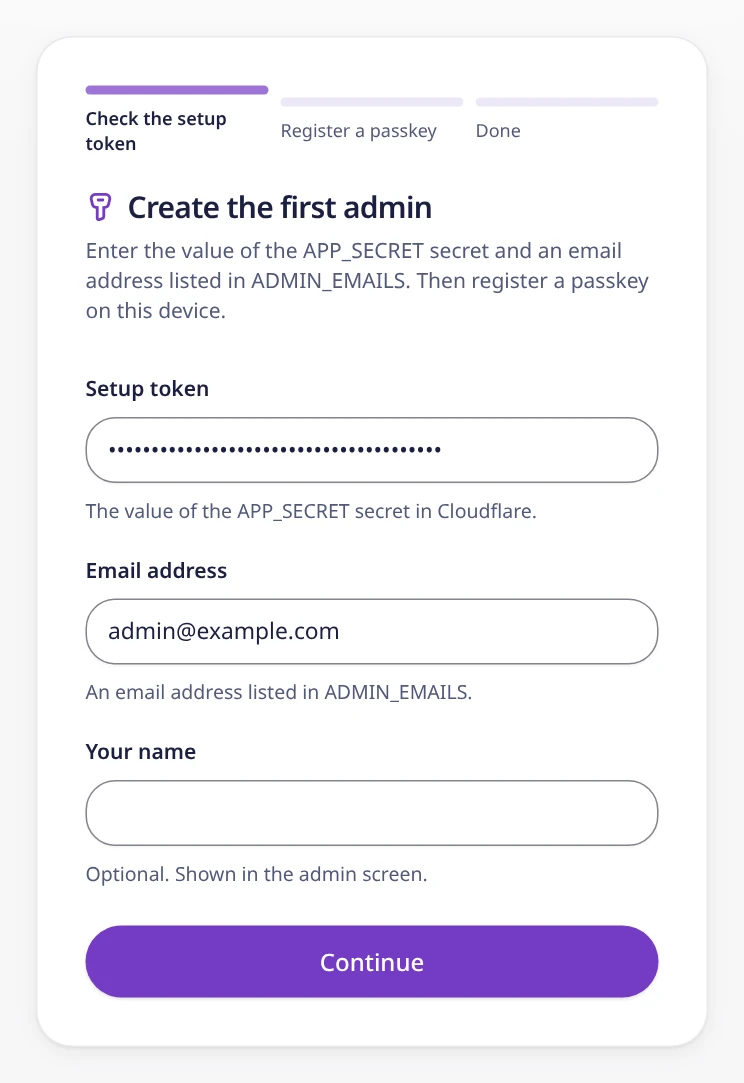
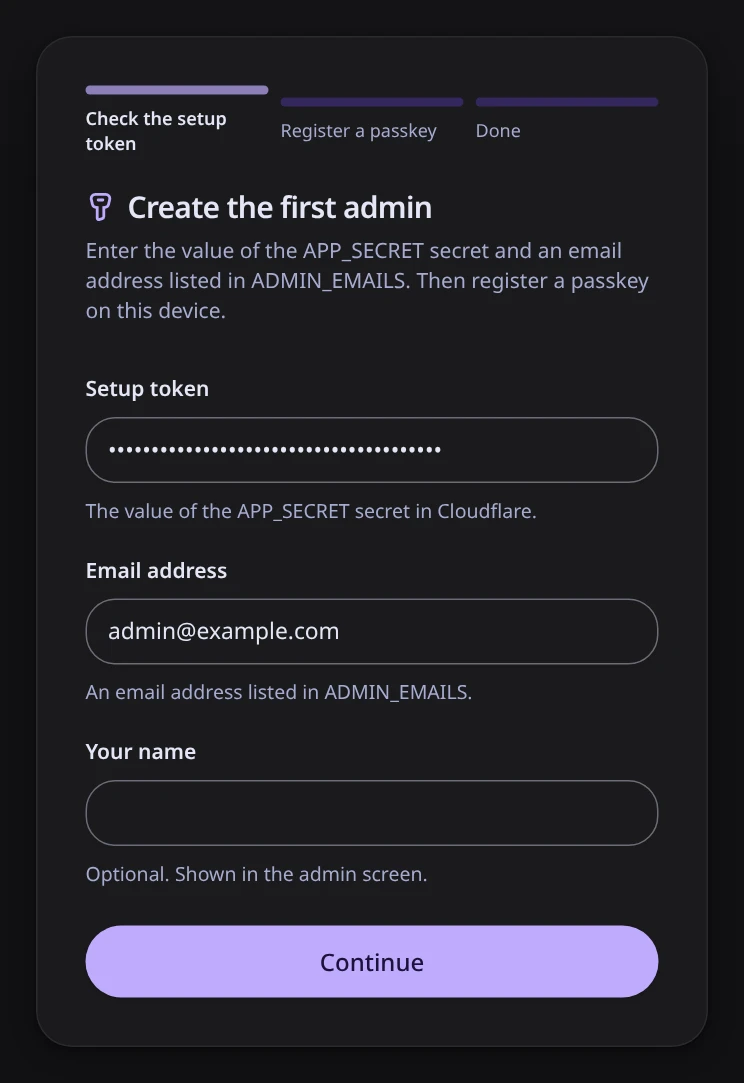
After the first passkey is registered, setup closes and the setup screen no longer works. Keep the APP_SECRET secret: the site still uses it for sign-in and IP hashes. If you set SETUP_TOKEN (see Separate keys), delete it now. First admin setup explains the rules.
Optional: put Cloudflare Access in front of the admin screen
Cloudflare Access adds a second sign-in, for example a one-time code sent by email. It is free for up to 50 users.
It is recommended but not required. The admin screen always requires a passkey sign-in, with or without Access.
Put the Access application on these paths:
/admin,/admin/*/api/admin/*/api/setup/api/auth/*
Keep /api/contact public. Visitors send the contact form there.
To have the Worker check the Access token as well, add two variables:
ACCESS_AUD: the application's Application Audience (AUD) TagACCESS_TEAM_DOMAIN: for exampleyour-team.cloudflareaccess.com
Set both or neither. With only one, the admin paths return 503. See Security model.
Edit your site
The site has Japanese and English pages. Edit both:
- Company details and the three theme colors:
site.config.ts - Pages:
src/pages - Posts:
src/content
The contact form fields are not in the code. Change them in the admin screen (Customizing the contact form).
Have a professional review the privacy policy template before you publish. Privacy notes lists what the template covers.
Separate keys
APP_SECRET is the default and is enough for a site. If you prefer to manage each key on its own, you can also set these secrets in the Cloudflare dashboard or with npx wrangler secret put. The Deploy to Cloudflare form does not ask for them.
| Name | What it replaces |
|---|---|
SETUP_TOKEN | The value you enter on the setup screen. When it is set, APP_SECRET is not accepted there. You can delete it after setup. |
BETTER_AUTH_SECRET | The key that signs admin sessions. |
IP_HASH_SECRET | The key that hashes IP addresses. |
Each must be a random string of 32 characters or more. A value you set is used instead of the one derived from APP_SECRET, and a value that is too short turns its features off instead of falling back to APP_SECRET. Sites that already set these three secrets keep working as before.
Adding or removing BETTER_AUTH_SECRET or IP_HASH_SECRET on a running site changes that key, with the same effects as changing APP_SECRET.
Without the Deploy button
You can also create a project with npm create cloudflare (C3). C3 only creates a local project. You create the GitHub repository yourself, so create it as private.